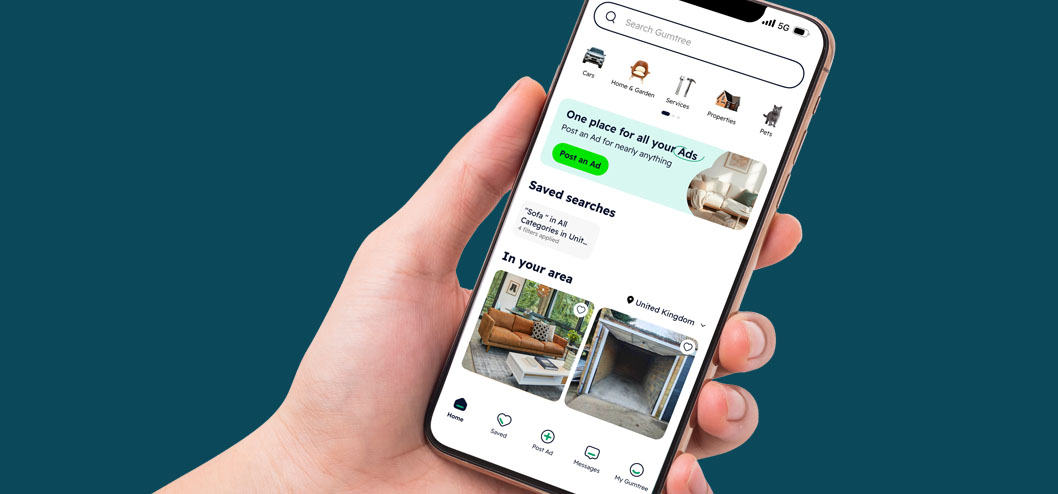
In today’s competitive marketplace, customer reviews play a critical role in buyer decisions. That’s why Gumtree allows Business Services users to sync Google Reviews with Gumtree listings. This allows you to showcase authentic feedback, build trust with potential clients, and stand out against competitors.
Displaying your Google ratings directly on your Gumtree profile and ads reassures buyers and gives you a clear visibility boost. This feature is available only to advertisers in our Business Services category, who connect their Google Reviews – making your business more credible and attractive to potential clients.

Why Syncing Your Google Reviews Matters:
- Build trust and credibility with authentic reviews
- Showcase your reputation directly in search results
- Attract more inquiries and stand out from competitors
How to Sync Google Reviews with Gumtree Listings
On the Gumtree app
Option A: after Posting an Ad
- After publishing your ad, the “Sync Google Reviews” prompt will appear.
- Tap Enable Google Reviews.
- Select your Google account holding the business reviews and Allow access.
- Your Google rating will show on your Ads and profile within seconds.
Option B: from Settings
- Go to My Gumtree → tap the gear icon (Settings) on the top right.
- Select Account settings.
- Under Ratings, toggle Google Reviews On and wait a few seconds.
- Choose your Google account and Allow access.
- Your ratings and reviews will be visible on your ads and profile instantly.
On Web or Mobile Web
Option A: from My Details
- Click the Menu (top-right) → select My Details.
- Under Ratings, toggle Google Reviews On.
- Choose your Google account and Allow access.
- Your Google rating and reviews will appear on your ads and profile within seconds.
Option B – after the “Post an Ad” journey
- After publishing an ad, the “Sync Google Reviews” prompt will pop up.
- Tap Enable Google Reviews.
- Select the Google account with your business reviews and Allow access.
- Your Google rating will display on your ad and profile quickly.
Switching Google Accounts for Your Gumtree Reviews
Want to connect a different Google account?
- Go to the Google Reviews section in the app or website.
- Click or tap Unlink and confirm.
- Toggle Google Reviews On again.
- Sign in with your preferred Google account.
Take Action Now
Syncing your Google Reviews with Gumtree listings is a simple but powerful way to grow your business:
✅ Build trust instantly
✅ Increase your visibility in search results
✅ Attract more buyer inquiries
Don’t miss this opportunity to make your Gumtree ads stand out.
Need help? Visit the more about managing your reviews in Google Business Profile.
FAQs
What are Google Reviews for Gumtree?
They allow you to showcase your Google customer feedback directly in your Gumtree profile and search listings.
Why implement this change?
To help you win more business by building trust and showing proof of quality service. Customers want reassurance when they’re purchasing services, and reviews play a key role in providing this. By showing Google Reviews on your Gumtree ads, you’re giving buyers the confidence to choose you over competitors – helping you secure more leads and work.
Does this affect all my Ads?
Yes. Your reviews will be visible across all your business service ads.
What if I have technical problems synching my Google reviews?
If you have technical issues, we recommend contact Gumtree customer support, your business account manager, or checking the Google Business Profile page.
I have synced my reviews but cannot see them in my Ads?
Your Google Reviews will appear on your ad pages immediately after syncing. On search results pages, it may take a few days for your reviews to show up as we are rolling out this feature progressively.
Will Gumtree also introduce its own reviews for Services?
Yes, we plan to introduce Gumtree’s own reviews for Services in the future. For now, we are focused on integrating Google Reviews so you can showcase authentic customer feedback immediately. We’ll share more details with all sellers as we roll out this update.
Why Google Reviews?
Google Reviews are the most widely recognised and trusted review platform for local businesses. Most consumers already use Google to check business ratings before making decisions, so displaying your Google Reviews on Gumtree instantly builds credibility and trust. By using Google Reviews, you’re showcasing real, verified feedback that buyers already know and trust – helping you stand out and win more business.
How to setup a Google Business Profile and start claiming reviews
First, check if a Google Business Profile already exists for your business. If an unverified profile exists, you can claim it:
- On your computer, open Google or Google Maps.
- In the search bar, enter the business name and city.
- To claim the Business Profile:
- On Google Search: Click Own this business
Manage now
- On Google Maps: Click Claim this business
Manage now.
- To choose a different business, click I own or manage another business.
- On Google Search: Click Own this business
- Select a verification option and follow the on-screen instructions.. (You can find more about Google verification process here)
- Follow the on-screen instructions.

Add your business
If a profile does not exist for your business on Google Search or Maps, create a new one:
- Go to business.google.com/add
- Click Add your business to Google
- To add details about your business, follow the on-screen instructions
- Select a verification option, and follow the on-screen steps
More details can be found here.
Share a review link or QR code
Once your profile is set up, you can create and share a link or QR code to help customers leave Google Reviews.
- Include it in thank you emails
- Add it at the end of a chat interaction
- Request them during your telephone calls
To create and share a link or QR code:
- Go to your Business Profile.
- To find your review link, select Read reviews and then Get more reviews Share
.
- Share the link or QR code directly or use the share options.
- To copy the review link, select Copy
- To download the QR code:
- Right-click the QR code
- Select Save image as….
- To copy the review link, select Copy

Tip: If you share through email, the email linked to your Business Profile sends the email.
More details can be found here.
Once you have set up your Google Review page, sync it to your Gumtree account. As reviews start coming in, they’ll be available for buyers to see within your advert listing and search results pages.